
The Apple Notes app has been a stable part of my toolkit and my go-to app for taking notes.
In case you use it as your note-taking app, here are some lesser-known tips that have been helpful for me and can be for you, too:
1. Link to a note section
We've been able to link one note to another in the Notes app for a while, but in the latest iOS and macOS versions, we can link to a specific note section.
On an iPhone, select the text you want to link from and choose Add Link from the pop-up menu. Then, select the note you want to link to and choose a section from the Link To Section option:
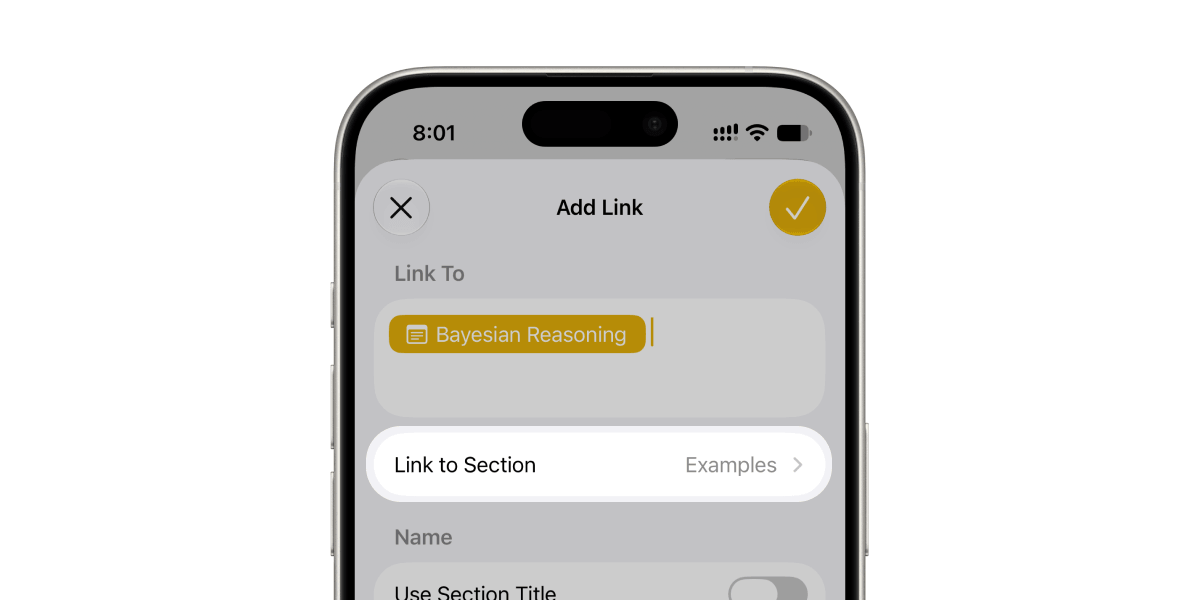
On a Mac, select the text you want to link from and press ⌘K to open the link pop-up, which presents the same Link to Section option.
2. Navigating nested notes
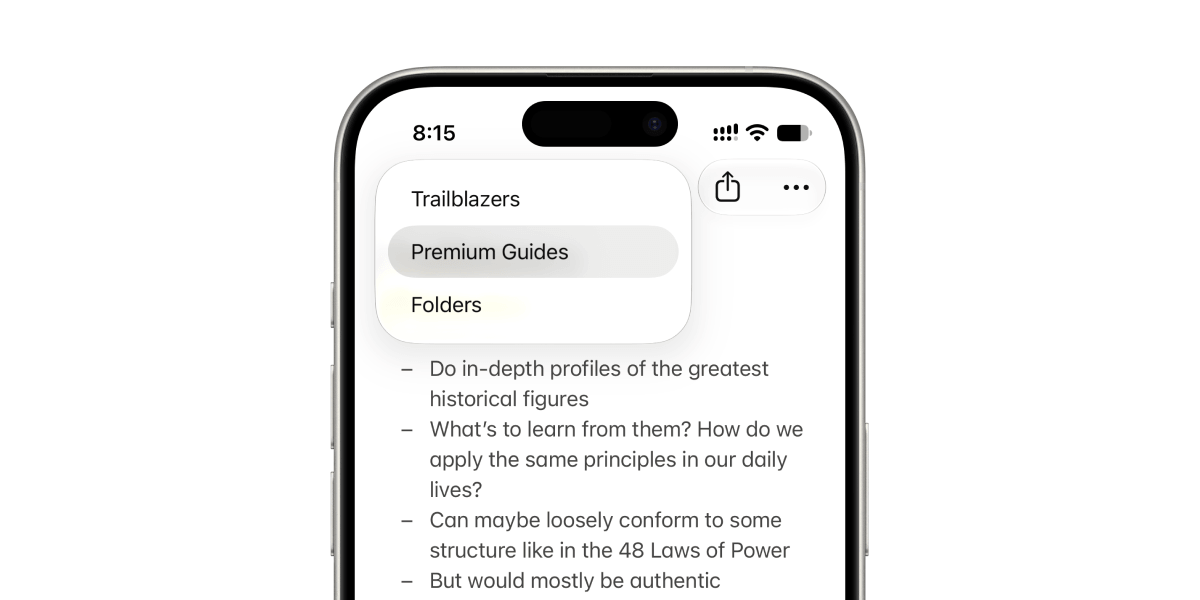
If you organise your notes in nested folders, navigating to the top folder or one up in the chain on an iPhone can be cumbersome because you need to swipe your way there one step at a time.
Instead, you can long-press the back button to reveal the folder hierarchy and choose the folder you want to navigate to:
3. Keeping the note window on top
Unless you're using split windows, taking notes from a web page or other document can mean going back-and-forth between the browser window and an open Notes window.
I like to keep the browser window maximised and instead have a new note opened in a separate window that I resize to its smallest size and keep it floating on top of the browser using the Window → Keep on Top option:
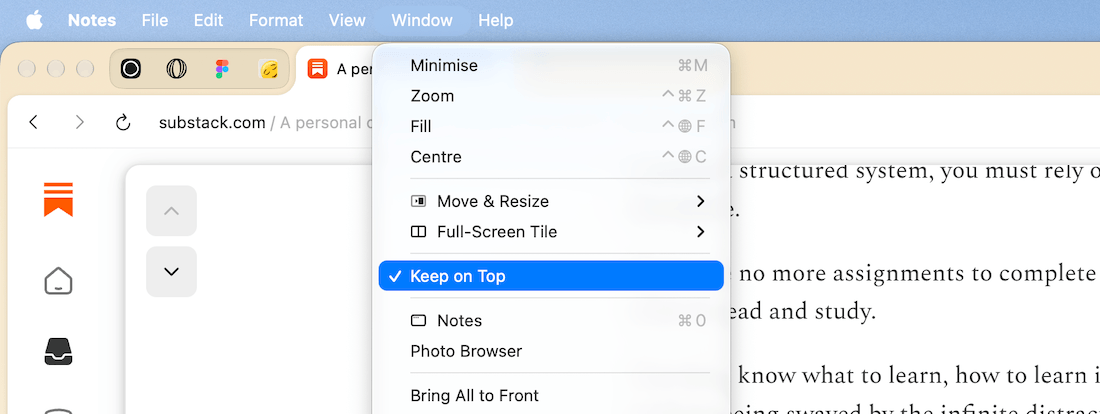
This gives me a floating scratchpad that always stays on top of all other windows in the space, including the browser, and I can quickly write or paste notes there.
That's all on the Notes app for now, but I've written a guide about Apple Notes with more workflows and tips.
In Today's Cover: It's the Monarch butterfly migration season.
Now, speaking of taking notes and capturing ideas easily, have you tried the Thoughts app?
Before you move on to the rest of this newsletter issue, here are a few words from:
 This Week's Sponsor
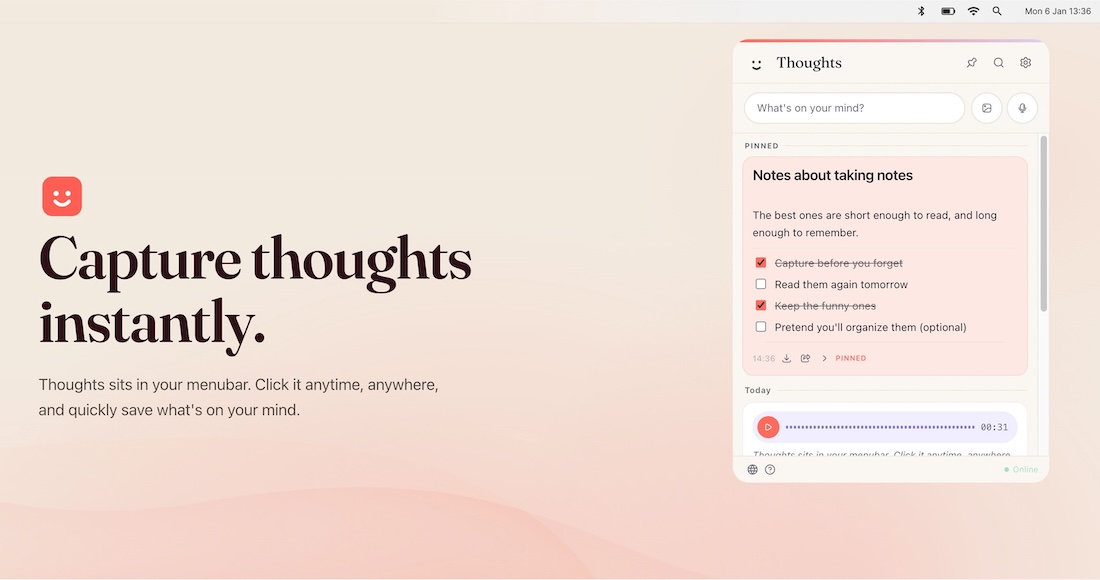
Capture video, audio and text notes straight from your menubar with Thoughts. Use the app to create checklists, convert images and audio to text, or even fix grammar.
Think of it as a little multi-tool inside your menubar.
It’s free to download and use forever, so why not download it today?
Sponsorships are paid callouts seen by over 4,509 people every Friday. Promote your product or service.
 Your Next Read

Thriving
I've been re-reading this book, and the overall concept feels way more relevant and useful in this age of AI. Now that the friction in dipping our toes outside areas of expertise has decreased, it's time we increase our range.
 Apps & Services
Quickly compress your copied files
Your personal feed of interesting things
Hang your screenshots on a virtual clothesline
 Handy Shortcut
⌘
`
 Interesting Reads
23 min read
9 min read
 Watch Next
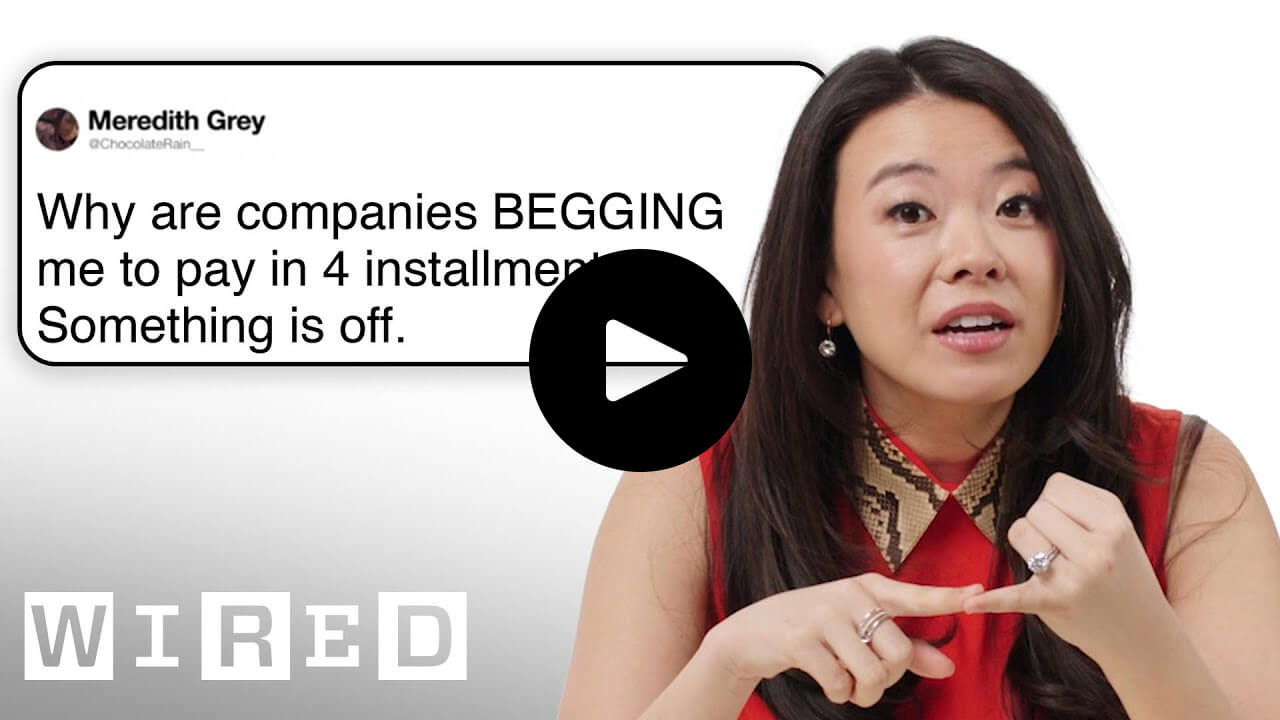
Vivian Tu takes on interestingly useful personal finance questions and answers them with practical advice in this video.
 Want to join my inner circle?

Join a club that pays you back handsomely through knowledge and skills that help you get 1% better every day.
For a modest yearly fee, you get:
- A growing collection of member-only series and guides
- 23 highly actionable book summaries
- Invite to a member-only Discord community
- 27 hand-picked app deals that save you over $328
- Flat 50% off on other Hulry products like apps, books and more
- My eternal gratitude for funding my work ❤️

Hi! 👋 I'm Rahul, the person behind Hulry and the one who sent you this newsletter.
Thank you for reading this issue.
Cover illustration by Sukriti Sharma.
MADE WHILE LISTENING TO
 Choosin' Texas by Ella Langley
Kudlu Road, Hosapalya, Bangalore, India — 560068
Were you forwarded this newsletter? Get your own subscription here.