
This week, I want to share a handy Finder trick that helps me temporarily gather files on my Mac without disturbing the original structuring.
I often need to curate a few images and videos to add to a social media post or an article, and Finder's tagging system is a fantastic way to filter and organise files without moving them to a new folder and then moving back to the original folder once done.
Here's what I do:
First, I right-click and tag each file I need with a colour, like Yellow:
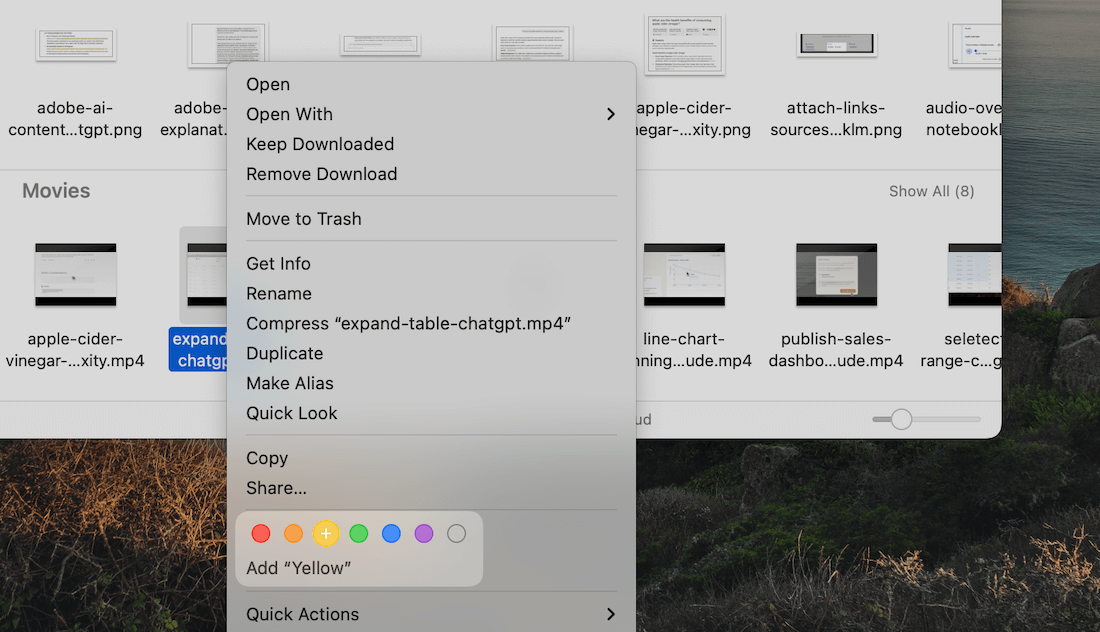
Then, I search for that coloured tag on Finder like this:
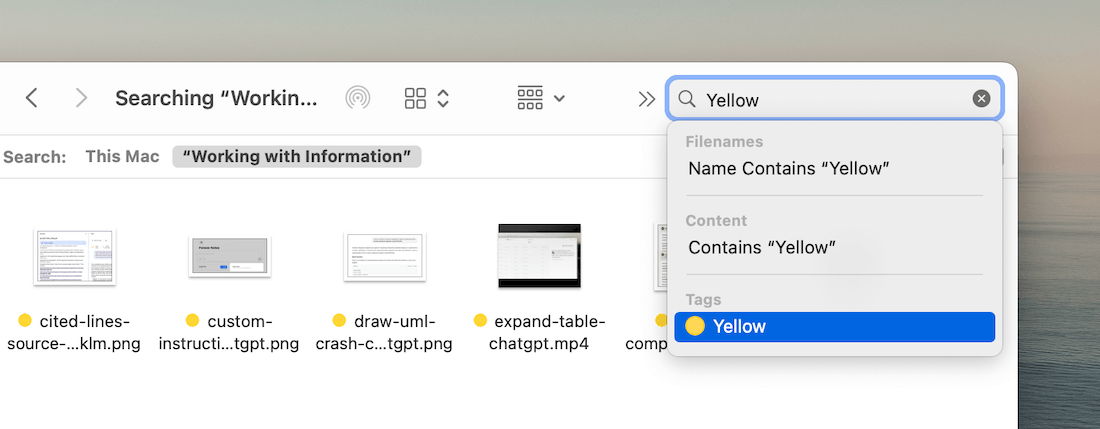
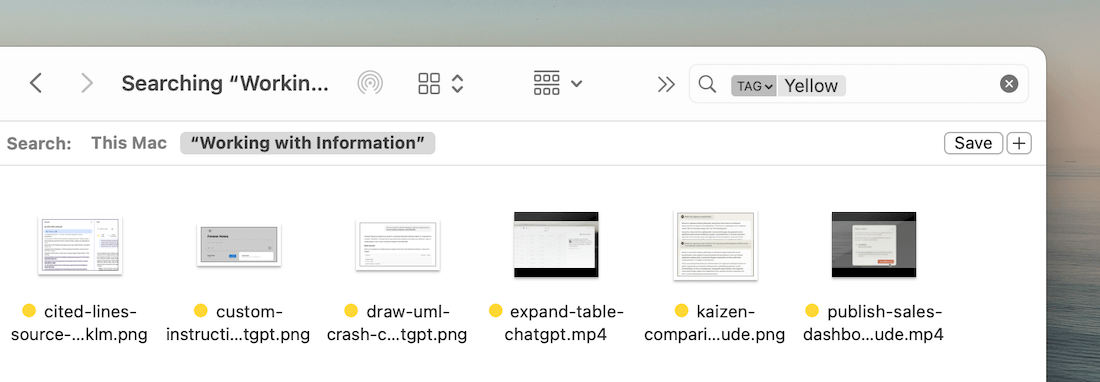
This creates a filtered view of all files marked with that tag:
Once I've uploaded the file, I clear the tag to remove it from my filtered list:
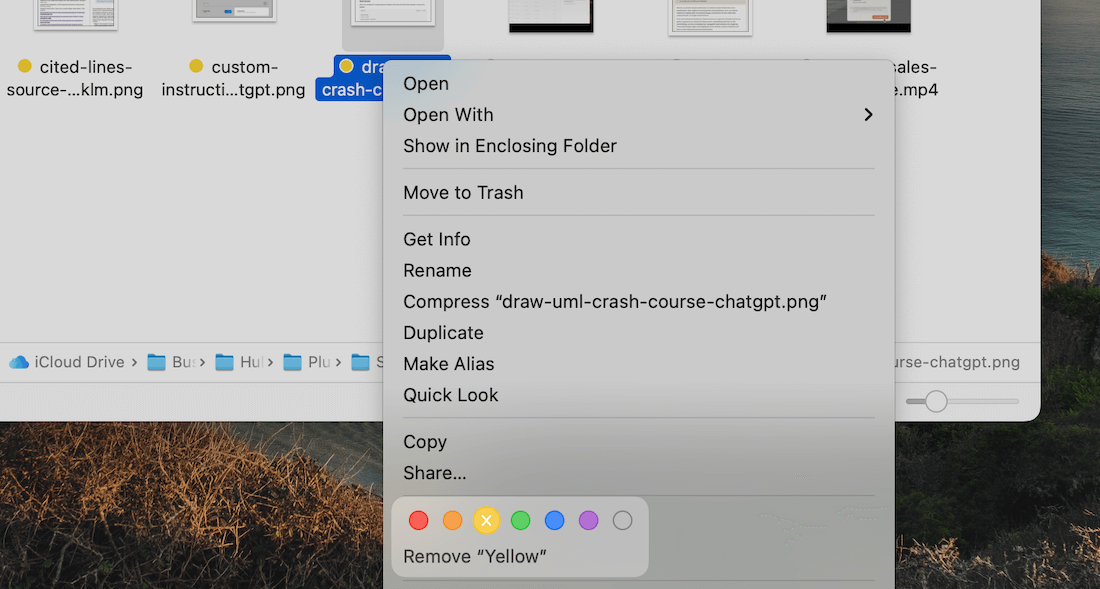
By the end of this exercise, I'd collected and used all the files I needed without disrupting my original organisation or making unnecessary copies.
This trick also comes in handy when shortlisting RAW photos I want to edit. I tag each photo I like with a colour to make it easier to identify the shortlisted ones later.
Try this the next time you need to temporarily collect or mark a few files on your Mac.
Now, before you move on to the rest of this newsletter issue, here are a few words from:
 This Week's Sponsor

Has your day started at 100mph? Take a moment to slow down.
Breathe in for 4… hold for 4… release for 6. Repeat 4 times.
“Intogreat’s tools are a game changer. They help me slow down and find balance.” – Sarah H
Find your balance, visit Intogreat.
Sponsorships are paid callouts seen by over 4,152 people every Friday. Promote your product or service.
 Your Next Read

Thriving
Understanding why we want to do it before we start anything — a habit, business or a project — will get us farther than any shallow external motivation. To build for the long-term, start with your why.
 Apps & Services
Run LLMs offline on your Mac and iPhone
Make shareable lists of anything
Create subtly beautiful email signatures
 Handy Shortcut
Shift
2
 Interesting Reads
 Longform
8 min read
10 min read
19 min read
 Watch Next

A new study that explains how our brains process information for everyday tasks.
 Quick Feedback

If you've enjoyed reading this newsletter issue, you'll love the member-only articles, book summaries and community access that come with a Hulry Plus membership.
Become a MemberKudlu Road, Hosapalya, Bangalore, India — 560068
Were you forwarded this newsletter? Get your own subscription here.